EasyHomebrew: The Native Mac GUI Homebrew Has Been Missing
April 22, 2026 · Projects & Releases
A hands-on look at EasyHomebrew 1.6.0 — an AI-assisted package manager that finally makes brew feel at home on macOS.
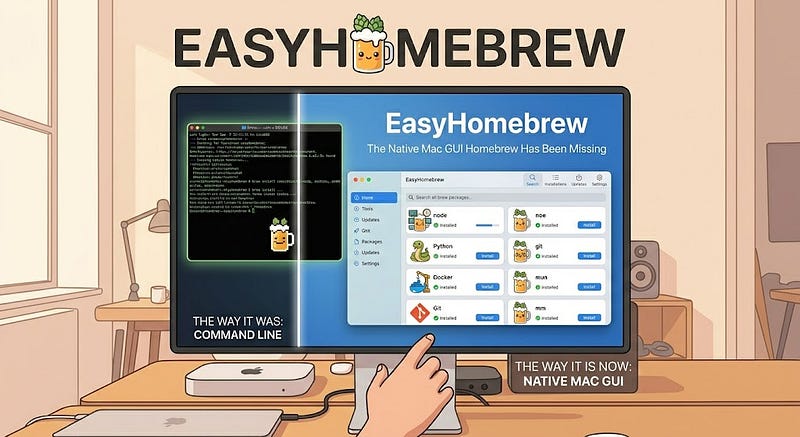
Homebrew is the duct tape of the Mac developer stack. Search any “new Mac setup” thread on Reddit and brew install will show up in the first ten lines. It is, quietly, one of the most important pieces of software on the platform.
It is also, famously, a terminal-only experience. That has been a point of pride for the community for over a decade — Homebrew is for developers, and developers live in the shell. But that framing has always been a little convenient. Plenty of people who rely on Homebrew today are not writing code full-time: designers who need ffmpeg for video work, data analysts reaching for duckdb, students grabbing a copy of wget once a semester, tinkerers installing casks for apps that never made it to the App Store. For all of them, the terminal is a tollbooth, not a destination.
EasyHomebrew is a tool that aims to uncover the rich selection of available open-source software.
EasyHomebrew, a native macOS app now at version 1.6.0 (on trial), is an attempt to remove that tollbooth without dumbing down what Homebrew actually does. After a week with it, the short verdict is that it succeeds — with some interesting ideas of its own bolted on top.
This piece walks through what it’s like to actually use the app: discovery, installation, updates, the security scanner, and the design choices that make it feel more like a first-party Apple utility than a wrapper around a CLI.
First Impressions: It Looks Like It Belongs
Open EasyHomebrew and the first thing that registers is how Mac it feels. Traffic-light window controls, a proper sidebar that collapses, SF-style monochrome icons, a translucent toolbar. This is not an Electron shell or a Tauri webview trying to pass as native. It looks and responds like something Apple could have shipped in a developer tools bundle.
The sidebar is organized into four blocks: Browse (Discover, Installed, All Packages), Manage (Updates, Security, Services, Doctor), and Categories — a taxonomy that takes Homebrew’s flat global namespace and sorts it into familiar buckets: Developer Tools, System Utilities, Networking & Security, Media & Graphics, Productivity & Communication, Libraries & Frameworks, Science & Data, Fonts & Themes.
That last block matters more than it looks. One of the real friction points of the brew CLI is that discovery assumes you already know the package name. If you do not know that the thing you want is called ffmpeg or imagemagick or mas, the terminal cannot help you. Categorization — plus the Discover tab we will get to in a minute — is the first of several places where EasyHomebrew quietly reframes Homebrew from a command you type into a library you browse.
At the bottom of the sidebar is a small status panel that doubles as a dashboard: how many formulae and casks are installed, how many updates are pending, how much disk the Cellar and Caskroom are using, and, crucially, how many packages have been security-scanned and how many came back vulnerable. It is the kind of always-visible telemetry that a terminal simply cannot provide.
Discover: The AI Recommendation Engine
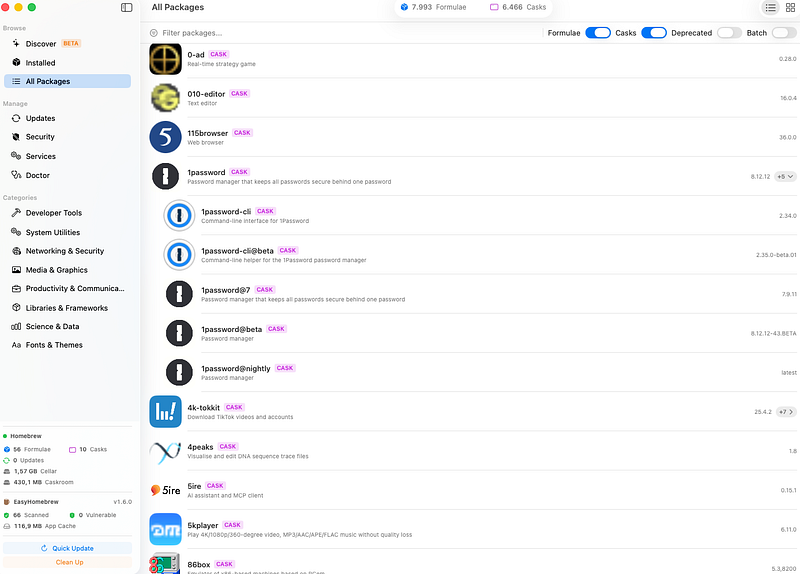
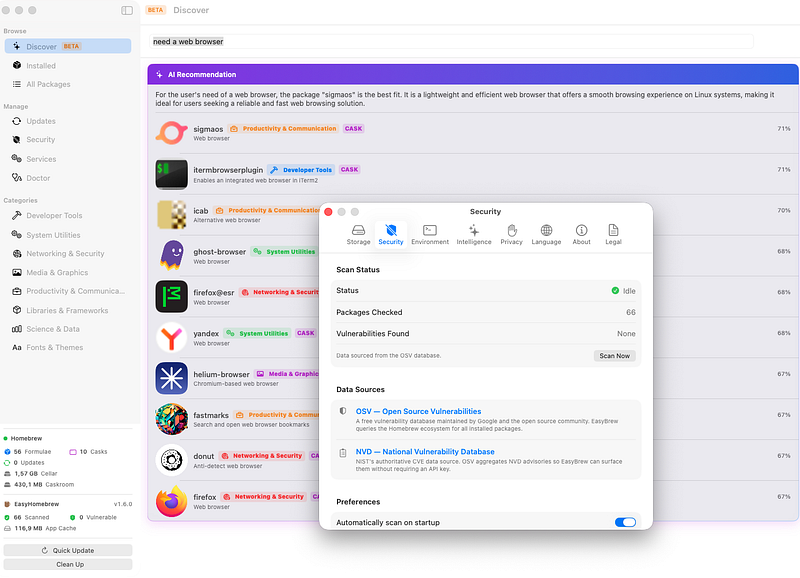
The tab labeled Discover — still marked BETA in 1.6.0 — is the most ambitious feature in the app and the one most likely to provoke opinions. Instead of a search box that expects a package name, Discover accepts a plain-English request. Type need a web browser and the panel responds with an AI recommendation plus a ranked list of matches, each one tagged with its category and a confidence percentage.
In testing, the top result for need a web browser was sigmaos at 71% match, followed by itermbrowserplugin, icab, ghost-browser, firefox@esr, yandex, helium-browser, fastmarks, donut, and finally firefox itself at 67%. The results are interesting in a way that reveals both the strength and the quirk of the approach: it is pulling from the full Homebrew cask catalog, which means genuinely obscure niche browsers surface alongside household names.
The recommendation pane above the list summarizes why the top pick was chosen — in this example, a short justification for why sigmaos might suit someone asking for “a web browser” on a Linux-ish stack (the model occasionally over-generalizes, which is worth flagging). A user who already knows what they want can still type the package name directly; Discover falls back to conventional fuzzy search when the query looks like an identifier.
The quiet benefit is onboarding. A new macOS user, or a developer switching ecosystems, does not have to know that the CLI for Postgres is called postgresql@16 or that the casks for chat apps use hyphenated names. They can describe the problem and let the app translate.
All Packages and Installed: Browsing That Actually Works
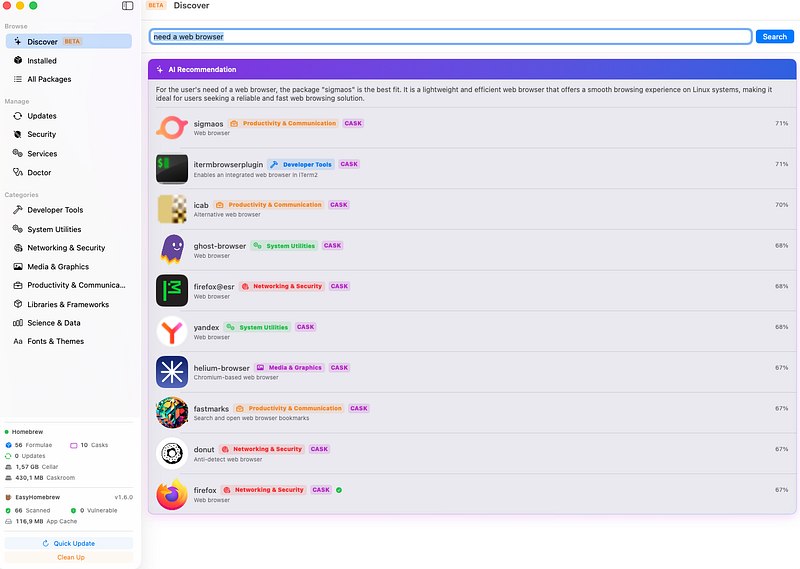
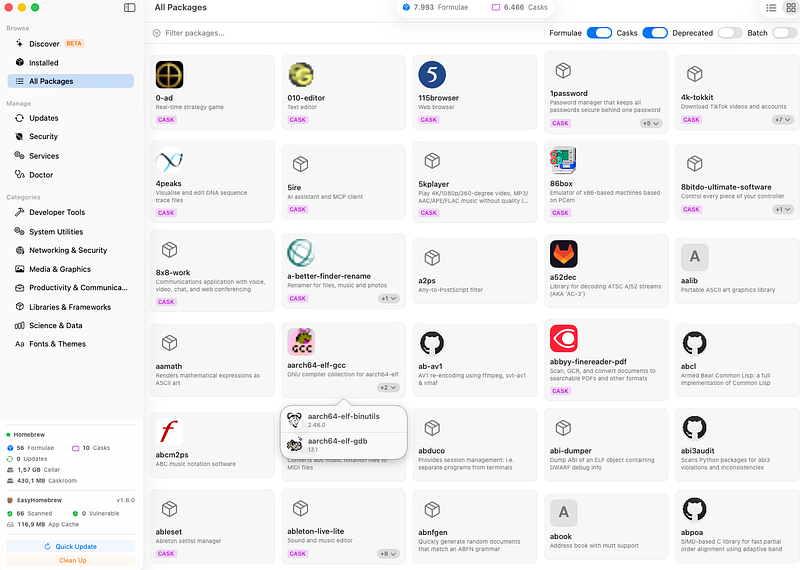
Outside the AI layer, the All Packages view is the workhorse. It loads the full Homebrew index — a staggering 7,993 formulae and 6,466 casks at time of testing — and offers both list and grid layouts, toggles for Formulae / Casks / Deprecated / Batch, and a filter box that behaves the way you would expect a good filter box to behave (incremental, fast, tolerant of typos).
A small detail that pays off repeatedly: packages with variants — think aarch64-elf-gcc alongside its sibling aarch64-elf-binutilsand aarch64-elf-gdb — collapse into a single card with a +2 chevron that expands inline. Versioned casks like 1password, 1password-cli, 1password@7, 1password@beta, and 1password@nightly are grouped the same way. This is the kind of affordance that is trivial in a GUI and effectively impossible in a flat brew search list.
Installed is the counterpart view for everything on disk. It shows each cask and formula with its icon where available — VLC, Docker, Firefox, Postman, Ghostty, JetBrains Toolbox, and so on — and falls back to a generic box for formulae without artwork. A typical developer install (16 formulae, 10 casks in testing — Docker, Ghostty, VLC, Zed, Postman, Claude Code, JetBrains Toolbox, Neovim, Starship, uv, wget, and friends) fits on a single screen.
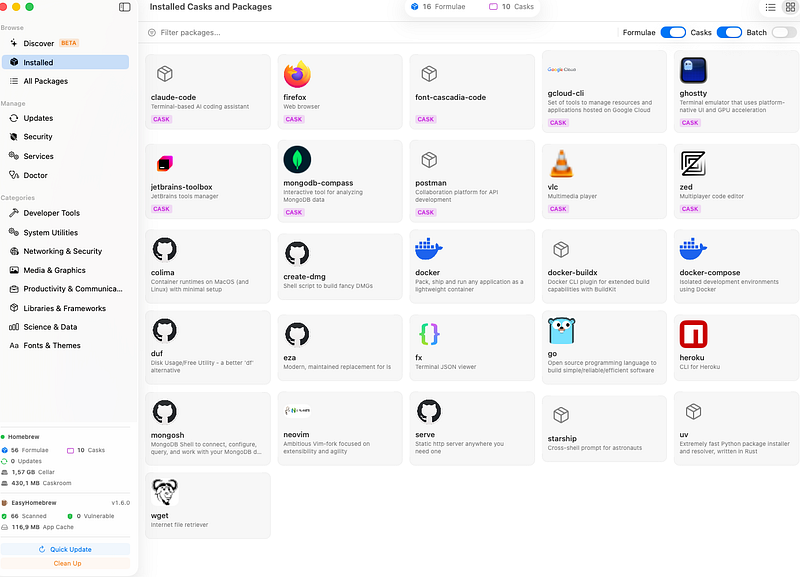
Clicking any card opens a detail pane with version history, dependencies, disk footprint, and the raw brew info output for users who want to verify what the GUI is doing.
The Batch toggle in the top-right is worth calling out. Flip it on and every card gains a checkbox; select as many as you want and act on all of them at once — update, uninstall, reinstall, pin. Anyone who has sat through a loop of brew upgrade <package> commands will appreciate it.
Updates and the Quick Update / Clean Up Buttons
The Updates tab lists any formulae or casks with new versions available, along with the delta (current version → target version) and changelog links where the maintainer has provided them. There is nothing revolutionary about the design; what matters is that it exists, and that it is glanceable. The sidebar status panel surfaces the update count at all times, so a user who opens the app to do something else sees immediately whether maintenance is overdue.
Two permanent buttons anchor the bottom of the sidebar: Quick Update and Clean Up. Quick Update runs brew updatefollowed by brew upgrade in sequence, with a progress drawer that shows each package as it completes — essentially a one-click "keep my stack fresh." Clean Up is the corresponding housekeeping button: it runs brew cleanup and surfaces how much disk was reclaimed, which is satisfying in a way that command-line output never quite manages to be.
Neither button does anything a seasoned Homebrew user could not do by hand. That is, in a way, the point. EasyHomebrew is not trying to replace brew; it is trying to make the two or three things a user does weekly into single-click rituals.
Security: The Surprise Headliner
If Discover is the feature that sells the app in a screenshot, Security is the feature that justifies keeping the app open. Click the Security tab and EasyHomebrew presents a scan dashboard: Status: Idle, Packages Checked: 66, Vulnerabilities Found: None, with a Scan Now button and a toggle for “Automatically scan on startup.”
The data sources are the interesting part. EasyHomebrew pulls from two industry-standard vulnerability feeds:
- OSV — Open Source Vulnerabilities, Google’s free database that aggregates advisories from across the open-source ecosystem.
- NVD — National Vulnerability Database, the NIST-maintained CVE source that OSV itself aggregates from.
For every formula and cask installed, the app cross-references the package name and version against OSV’s index and surfaces any matching advisories. In the test install no vulnerabilities were flagged — not a surprise on a clean developer machine — but the mechanics of the scan are exactly what you would want: it is fast (sixty-six packages in under a second), it runs locally against a cached index, and it does not require an API key or a paid account.
This is material. Most Homebrew users have no mental model for whether their installed openssl@3 or curl is patched against the latest CVE. The CLI will tell you about updates, but it will not tell you that the update you skipped three weeks ago closed a remote code execution bug. EasyHomebrew closes that loop without any setup on the user's part.
Services and Doctor
Services surfaces everything brew services currently knows about: started, stopped, or errored background services managed by Homebrew (Postgres, Redis, MongoDB, and the like). Each row has start/stop/restart controls and shows the plist location for users who need to inspect it. It is a clean replacement for memorizing brew services listincantations.
Doctor runs brew doctor and renders the output as a structured checklist rather than a wall of text. Warnings get yellow chips; errors get red chips; the all-clear is a single green check. For anyone who has ever pasted a multi-screen brew doctorlog into a Slack channel asking "is this bad?", this view alone is worth the download.
Settings, Privacy, and Multi-Language Support
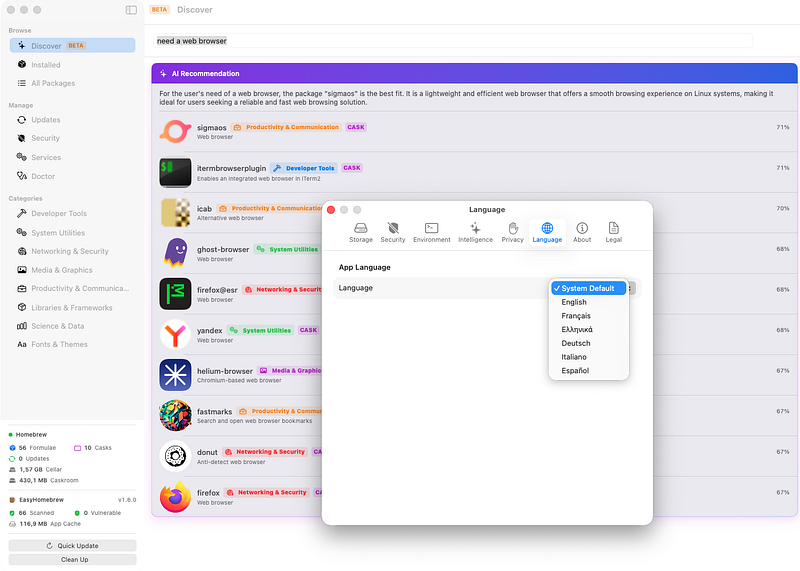
EasyHomebrew’s Settings window is organized into nine tabs — Storage, Security, Environment, Intelligence, Privacy, Language, About, Legal — and it is one of the places where the product’s point of view shows up most clearly.
Intelligence holds the toggle for the Discover tab’s AI features and, importantly, an option to swap out the default model or provide your own API key. The app does not hide the fact that AI calls leave the machine; it makes the trade explicit.
Privacy follows the same philosophy: telemetry toggles, a clear list of what is collected and what is not, and a panic switch that disables everything external in one click. In an era where every Mac utility wants an anonymous-but-actually-not analytics feed, the directness is a relief.
Language is the sleeper feature. EasyHomebrew ships with localization for English, French, German, Italian, Spanish, and Greek (Ελληνικά) on top of the system default. Package manager UIs are one of the harder things to localize well because the underlying content (package names, error messages) is inherently English.
Who Is It For?
The hands-on week suggested three distinct audiences, in roughly increasing order of “how much does this change your life”:
Experienced Homebrew users will not abandon the CLI; nobody is going to stop typing brew install. But Quick Update, the Security scanner, and batch operations are real time-savers. EasyHomebrew becomes the ambient dashboard you open on Sunday mornings to see the state of your machine, not the thing you reach for when you know exactly what you want.
Occasional users — the designers and analysts and hobbyists mentioned up top — get the biggest gain. Discover turns “I need a tool that does X” from a web search into a one-tab flow, and All Packages makes browsing feel like shopping in the App Store instead of spelunking in a wiki.
New Mac users who have been told “just install Homebrew” without ever being told what that means get a ramp that the CLI simply does not provide. The Categories view is the missing front page of brew.sh.
Verdict
EasyHomebrew does the rarest thing in the Mac-utility space: it takes something that already works — really works, for millions of people — and makes it more accessible without making it worse. It does not try to replace Homebrew. It does not try to lock you into a subscription. It does not try to convince you that package management is a lifestyle.
It is a clean, native, thoughtfully designed app that respects both the underlying tool and the range of people who rely on it. The AI Discover tab is a genuine novel contribution. The Security scanner, quietly, is the kind of feature that should have existed years ago. And the fact that it ships with Greek localization in version 1.6 is a signal about the team’s priorities that other indie Mac developers would do well to notice.
If you use Homebrew weekly, install EasyHomebrew. If you use Homebrew occasionally, install it twice as fast. And if you have been told to install Homebrew and have not yet worked up the courage to open Terminal, this is the app that finally makes it unnecessary to open Terminal at all.
EasyHomebrew is available at wizhut.tech/easyhomebrew and is currently on trial. Download it and try it. Version reviewed: 1.6.0.